Thursday, November 06, 2008

Resolved: Installing Silver Tools Beta 2 with Visual Studio 2008 SP1

If you have Visual Studio 2008 SP1 installed and you are attempting to install Silverlight Tools Beta 2 (silverlight_chainer.exe), you may have run into the following error:
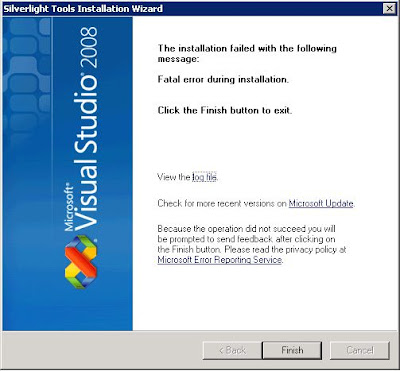
The installation failed with the following message: Fatal error during installation. Click the Finish button to exist.


If you open the log file and scroll to the bottom, you may find an error similar to this:

Original exit code: c:\a50aad885dc5172be00e9656bfb3\Silverlight.2.0_Developer.exe returned non-MSI error code: 0x5de - The event log file is full.

If you attempt to run that executable, you will likely get an error that a newer version already exists. The interesting part is this executable is trying to install the "developer" version of Sliverlight (which allows for debugging as I understand).

I went to Control Panel --> Add or Remove Programs and removed Silverlight. I then ran that executable again and voila, it worked.

I then ran the silverlight_chainer.exe again.

Surprise surprise! It worked!

--------------

I just found out that there is a Silverlight release for Visual Studio 2008 SP1.

Tuesday, October 28, 2008

Using Workflow with ASP.NET: Setting up a database

I will be writing a series on using Workflow with ASP.NET. For now, I will just be adding tidbits on how to set things up.

First, you will need to persist (and track) your workflows to a sql server database. To do so (taken from MSDN), create a new database and run the following scripts:

%windir%\Microsoft.Net\Framework\v3.0\Windows Workflow Foundation\SQL\EN\SqlPersistenceService_Schema.sql

%windir%\Microsoft.Net\Framework\v3.0\Windows Workflow Foundation\SQL\EN\Tracking_Schema.sql

%windir%\Microsoft.Net\Framework\v3.0\Windows Workflow Foundation\SQL\EN\SqlPersistenceService_Logic.sql

%windir%\Microsoft.Net\Framework\v3.0\Windows Workflow Foundation\SQL\EN\Tracking_Logic.sql

Thursday, October 23, 2008

Visual Studio 2008: Error When Opening Workflow Designer

You may run into this error when you upgrade to Visual Studio 2008 and attempt to view a workflow in the designer:

there is no editor available for [..] make sure the application for the file type (.cs) is installed

I first attempted to reset settings for Visual Studio and that didn't do it. I re-installed Visual Studio 2008 and kept getting the same error. Little did I pay attention to the output window! It was already telling me how to fix it:

The Microsoft.Workflow.VSDesigner.DesignerPackage, Microsoft.Workflow.VSDesigner, Version=9.0.0.0, Culture=neutral, PublicKeyToken=31bf3856ad364e35 ({FD526733-BD72-4F81-BEEC-BEB06E2AF59F}) did not load because of previous errors. For assistance, contact the package vendor. To attempt to load this package again, type 'devenv /resetskippkgs' at the command prompt.

And so, I ran that command (if you don't have your system variables set up, you may have to browse to folder where the IDE executable resides. For example: C:\Program Files\Microsoft Visual Studio 9.0\Common7\IDE).

Monday, October 13, 2008

SQL Server and "User Instance" Error: The user instance login flag is not supported on this version of SQL Server. The connection will be closed

If you attempt using the membership/role providers with the .NET framework 2.0, you may get the following error:

The user instance login flag is not supported on this version of SQL Server. The connection will be closed

There could be a number of reasons:

1) You have not run the aspnet_regsql (in the C:\Windows\Microsoft .NET\Framework..) folder to register the required stored procedures for the membership and/or role providers.

2) You are not using SQL Server Express and your connection string has User Instance=True.

3) You downloaded a starter kit and trying to point it to a SQL Server 2005 instance and haven't modified the default Web.config (or forgot to remove User Instance=True in the connection string).

What's the User Instance flag used for?

It is only supported for the express edition of SQL Server. It allows running applications under a least-privilege user account (LUA).

It allows the creation of a separate SQL Server Express instance (spunned off the parent instance) that runs under the security context of the current user. You can read more here.

Rebuilding the master DB for SQL Server 2005

I was starting the SQL Server 2005 instance. The service failed to start.

I checked the event log and found the following error:

Error 2(The system cannot find the file specified.) occurred while opening file 'C:\Program Files\Microsoft SQL Server\MSSQL.1\MSSQL\DATA\master.mdf' to obtain configuration information at startup. An invalid startup option might have caused the error. Verify your startup options, and correct or remove them if necessary.

I went to that folder and sure enough, the master database does not exist. So how do you build one? It appears that you have to change the installation in order to do that.

Control Panel --> Add/Remove Programs --> Microsoft SQL Server 2005.

Click on Change. You should get a Microsoft SQL Server 2005 Maintenance dialogue.

First: Component Selection --> Select the troubled instance.

Next.

Second: Feature Maintenance --> I selected Database Engine.

Next. That should start a Microsoft SQL Server 2005 Setup Dialogue.

Thursday, September 18, 2008

Changing the owner of tables

Taken from: http://weblogs.asp.net/owscott/archive/2004/01/30/65229.aspx

The below helps changing ownership of tables (not database. You can follow the same principle to change other types of objects). Please note running the below would could limit access to these tables.

DECLARE @old sysname, @new sysname, @sql varchar(1000)
SELECT
@old = 'OldOwner'
, @new = 'dbo'
, @sql = '
IF EXISTS (SELECT NULL FROM INFORMATION_SCHEMA.TABLES
WHERE
QUOTENAME(TABLE_SCHEMA)+''.''+QUOTENAME(TABLE_NAME) = ''?''
AND TABLE_SCHEMA = '''
+ @old + '''
)
EXECUTE sp_changeobjectowner ''?'', '''
+ @new + ''''
EXECUTE sp_MSforeachtable @sql

Changing database owner when dbo is associated with a sql or windows account

You may have run into a situation where the dbo role is associated with a sql or a windows account (as you create objects under that identity). The problem? If you attempt to delete the account or remove its mappings (User Mapping under the properties of that account), you will get the following error:

Drop failed for User 'dbo'.

...

Cannot drop the database owner. (Microsoft SQL Server, Error: 15181)


The best way that I have found to go around this is to re-associate dbo with "sa" by using the sp_changedbowner stored procedure:

EXEC sp_changedbowner 'sa'

(Note: make sure you use "USE databaseName" or run the SP in the context of the database)

Wednesday, May 07, 2008

Search request was unable to connect to the Search Service

The search request was unable to connect to the Search Service.

Resolution: make sure the correct ports are open between server if you have your index and query servers on different boxes within your MOSS farm. Also, the correct roles need to be selected for each of these servers in the central administration.

Sunday, March 16, 2008

The language is not supported on the server - Office SharePoint Server2007 installation

I got the following error while trying to create a list based on a custom template:

The language is not supported on the server - Office SharePoint Server2007 installation

I came across this post but that did not seem to resolve my problem even after restarting the server.

Comparing other servers in the farm, I noticed that HKEY_LOCAL_MACHINE\SOFTWARE\Microsoft\Shared Tools\Web Server Extensions\12.0 was actually missing InstalledLanguages.

So I saved the following to a .reg file, double-clicked and voila! It worked like a charm:

Windows Registry Editor Version 5.00
[HKEY_LOCAL_MACHINE\SOFTWARE\Microsoft\Shared Tools\Web Server Extensions\12.0\InstalledLanguages]"1033"="12.0.4518.1016"

SharePoint 2007 (MOSS): DST is the root of all evil!

I'm leading a project to convert our MCMS implementation to MOSS. Migrations have been working great until recently. What changed, one might wonder?

It's this time of the year where daylight savings reeks havoc! The issue is the Windows Sharepoint Timer Service (you can find it under Admin Tools --> Services) could take an hour or longer to run your jobs.

So if you create Web applications, for instance, in a farm, it would take MOSS an hour to actually provision these sites. So before you drive yourself crazy, here are some tricks (if you don't want to take the risk of applying SP1, or MS hotfixes, which are often unreliable!):

Look at the job definitions under Operations and verify the job in question is listed.

If it is, then you can force it by running the following command:

"C:\Program Files\Common Files\Microsoft Shared\web server extensions\12\BIN\stsadm.exe" -o execAdmSvcJobs

Remember that you need to run this command on all your Web servers in the farm.

Wednesday, October 17, 2007

MCMS Migration to MOSS: Telerik RadEditor Content Appears as Decoded HTML

If you use RadEditor from Telerik in MCMS, and you migrated your content to MOSS, you will notice that your HTML tags are stored in a decoded format. "~LT~" and "~GT~" are especially noticeable as they represent the "<" and ">" characters.

Some have suggested running a script against the MCMS database to resolve the problem but I highly advise you against this approach; your support agreement with Microsoft would become void.

An alternative would be to format the custom fields' content on the MOSS site after the migration. Gary Lapointe provides sample code for custom commands to use with the STSADM tool to do just that.

A word of caution: Gary uses regular expressions, and so you need to be aware of some of nuances, such as escaping the "~" with "\".

Sunday, July 01, 2007

MOSS 2007 Enterprise Search: Metadata Property Mappings

When adding a new Managed Property under Search Settings in a Shared Service Provider (SSP), you may encounter the ambiguous error:

The settings could not be saved because of an internal error: name

This could occur if you have spaces or underscores in the name. Remove all spaces and you should be good to go!

Friday, October 27, 2006

SQL Server: Search for a Column Name in a Database

SELECT TABLE_NAME,COLUMN_NAME
FROM
INFORMATION_SCHEMA.COLUMNS
WHERE
COLUMN_NAME LIKE '%column%'
ORDER BY TABLE_NAME

Windows 2003 Server - IIS 6.0: Service Unavailable When Using Custom Account for Identity

When you try to use a custom account to have the application pool in IIS 6.0 run its identity, it's very likely that you'll end up with the following error: Service Unavailable.

This error is not descriptive enough as the reasons could be plenty. If you go to the application pool, you'll find that it has been disabled. The event log gives that clue with this error:

A failure was encountered while launching the process serving application pool 'Name of Applicaiton Pool'. The application pool has been disabled.

In order to solve this problem, you need to go Administritive Tools --> Local Security Policy. Go to Security Settings --> Local Policies --> User Rights Management, look for 'Logon as a service', click on Properties, and add the user account you are trying to use as a service account.

I've read that you have to restart the server after making these changes. I've also been told that adding that account to the IIS_WPG group would automatically give that right to the user account. I haven't tested the latter option (it's possible that restarting the service automatically adds the user to IIS_WPG).

Tuesday, May 02, 2006

ASP.NET: TextBox losing data on postback

Some may have encountered a problem where a TextBox may lose its data upon posting back although EnableViewState is set to true. Assuming the TextBox is not a password field (does not get saved for obvious reasons), there is one other reason that you don't see documented anywhere: if you carelessly copied your WebForm and forgot to update the codebehind path or the namespace!

Tuesday, November 22, 2005

SQL Server 2000: change database name

To change the database name, make sure you close Enterprise Manager. Using SQL Query Analyzer, run the following command:

alter database EXISTING_DATABASE_NAME modify name = NEW_DATABASE_NAME

Wednesday, November 02, 2005

A Comparison of Web Development Technologies: ASP.NET vs. WebObjects

My Masters Project, A Comparison of Web Development Technologies: ASP.NET vs. WebObjects, can be accessed here. I defended the project November 2, 2005. Feel free to visit my WebObjects blog.

Friday, June 24, 2005

SharePoint 2003: How to exclude paths to run ASP.NET applications

Running an ASP.NET application on a server with a SharePoint instance requires excluding the virtual paths the application needs, as the SharePoint ISAPI filter will intercept all requests. This post assumes you have SharePoint installed as a Default Web Site.

1. From the Administration Tools, click on SharePoint Central Administration.

2. Click on SharePoint Portal Server in the left menu.

3. Click on Configure virtual server settings from the Virtual Server List page.

4. Click on Default Web Site.

5. Click on Define managed paths.

6. Enter a path, check Exclude Path, and click OK.

Monday, June 20, 2005

SharePoint 2003: How to import a Web Part and mark it safe (without adding the assembly to the GAC)

You may have encountered the following error when trying to add a Web part to a page:

A Web Part or Web Form Control on this Web Part Page cannot be displayed or imported because it is not registered on this site as safe.

There are two possible causes: either the Web part has not been strongly named/hasn't been added as such in the Web.config, or the Web part's DLL or one of its referenced DLLs were not placed in the bin directory.

Below are steps to make a Web part safe:

1. The assembly has to have a strong name. You need the strong name tool sn.exe. From the command line:

cd \Program Files\Microsoft Visual Studio .NET 2003\SDK\v1.1\Bin

sn.exe -k “YourProjectPath\ProjectNameKeyPair.snk”


2. In the AssemblyInfo.cs file, find

[assembly: AssemblyVersion("1.0.*")]

and change it to [assembly: AssemblyVersion("1.0.0.0")]

scroll to the end and replace the entry that reads

[assembly: AssemblyKeyFile("")]

with

[assembly: AssemblyKeyFile("..\\..\\ProjectNameKeyPair.snk")]

3. Compile your project. Now you need to get the public key token. To do so, run the sn.exe utility again:

sn.exe –T “YourProjectPath\obj\[Release or Debug]\AssemblyName.dll

4. In the .dwp file, replace the AssemblyName entry with:

AssemblyName, Version=1.0.0.0, Culture=neutral, PublicKeyToken=PublicKey

5. In the web.config file, you need to mark the Web Part as safe by adding the following under the SafeControls section:

<SafeControl Assembly="Copy_the_entry_from_the_dwp_file" Namespace=" Copy_the_entry_from_the_dwp_file" TypeName="*" Safe="True"/>

Remember that you need to repeat the above for every DLL referenced by the WebPart (directly or indirectly)

6. Copy the Web Part’s DLL (and dependencies) to the bin directory under the SharePoint directory. If there isn’t one, create it.

7. Add the .dwp file using the import function.

Resources:

1. Create a basic WebPart
2. MSDN SharePoint: making a WebPart safe
3. SharePoint Products and Technologies Resource Kit

Sunday, June 19, 2005

About me

I am a software developer focusing mainly on the .NET framework and the powerful WebObjects system from Apple. I have about two and half years of experience in .NET, and half of that in WebObjects. My comparative study between ASP.NET and WebObjects is due, God willing, to be released in September. Until then, feel free to visit my WoNet blog, where .NET and WebObjects meet.

This blog will cover a variety of issues and challenges that I face and solve in my daily work.